> ## Documentation Index
> Fetch the complete documentation index at: https://data-foundation.rockerbox.com/llms.txt
> Use this file to discover all available pages before exploring further.
# OpenAI
> Set up Rockerbox tracking for OpenAI advertising campaigns
## Overview
Rockerbox supports tracking for OpenAI advertising campaigns. By configuring Rockerbox tracking parameters in OpenAI Ads Manager, you enable Rockerbox to attribute and map spend at the campaign, ad group and ad level.
Spend ingestion for OpenAI is currently in development. Configuring tracking parameters now ensures that Rockerbox can backfill historical spend data once the integration is fully available.
## Authenticating Your Account
In Open AI Ads Manager, go to **Settings → General → Create New Key** at [ads.openai.com](https://ads.openai.com) to generate an API key. OpenAI does not support OAuth, so this key is required to authenticate.
Navigate to [app.rockerbox.com/v3/data/marketing/integrations/connect](https://app.rockerbox.com/v3/data/marketing/integrations/connect) and use your API key to authenticate the OpenAI integration.
Provide the following to your Rockerbox representative:
* **OpenAI Pixel ID**
To find your OpenAI pixel ID:
1. Go to **Conversion → Data Source** at [ads.openai.com](https://ads.openai.com).
2. Locate your pixel in the list and copy the identifier from the **Name** column.
Each pixel has both a descriptive name (for example, `Page View`) and a unique pixel ID (a string such as `UGKseA9CgcdrHHdidgScJR`). Be sure to copy the **pixel ID**, not the name.
* **OpenAI Conversion Events**
For each OpenAI conversion event, go to **Conversion → Conversion Events** at [ads.openai.com](https://ads.openai.com) and send us these three values:
1. **Events** — typically your Purchase, Order, or Subscription Start event.
2. **Base event** — the base event paired with it in the adjacent column.
3. **Event ID** — the value contained in the Event ID when the pixel fires (for purchases, usually `order_id`).
> ⚠️ **IMPORTANT:** To avoid double-counting conversions, the **Event ID** must match its Rockerbox conversion identifier.
* **Rockerbox Conversion Events** — the conversion event in Rockerbox that corresponds to each of the tracked events in OpenAI.
⚠️ **IMPORTANT:** To prevent duplicate conversions, the **Event ID** on the OpenAI pixel must match its Rockerbox conversion identifier — this is how Rockerbox deduplicates the pixel against the server-side relay.
## Tracking Parameter Setup
We recommend configuring tracking at the **campaign level** so parameters inherit across all ad groups and ads. Ad group or ad-level configuration is available if you need to override specific values.
1. Navigate to **Campaigns**, **Ad Groups**, or **Ads**
2. Open the three-dot menu for the level where you want to configure tracking
3. Select **Edit campaign**, **Edit ad group**, or **Edit ad**
4. Locate the **Landing page query parameters** field
5. Enter the following Rockerbox tracking parameters:
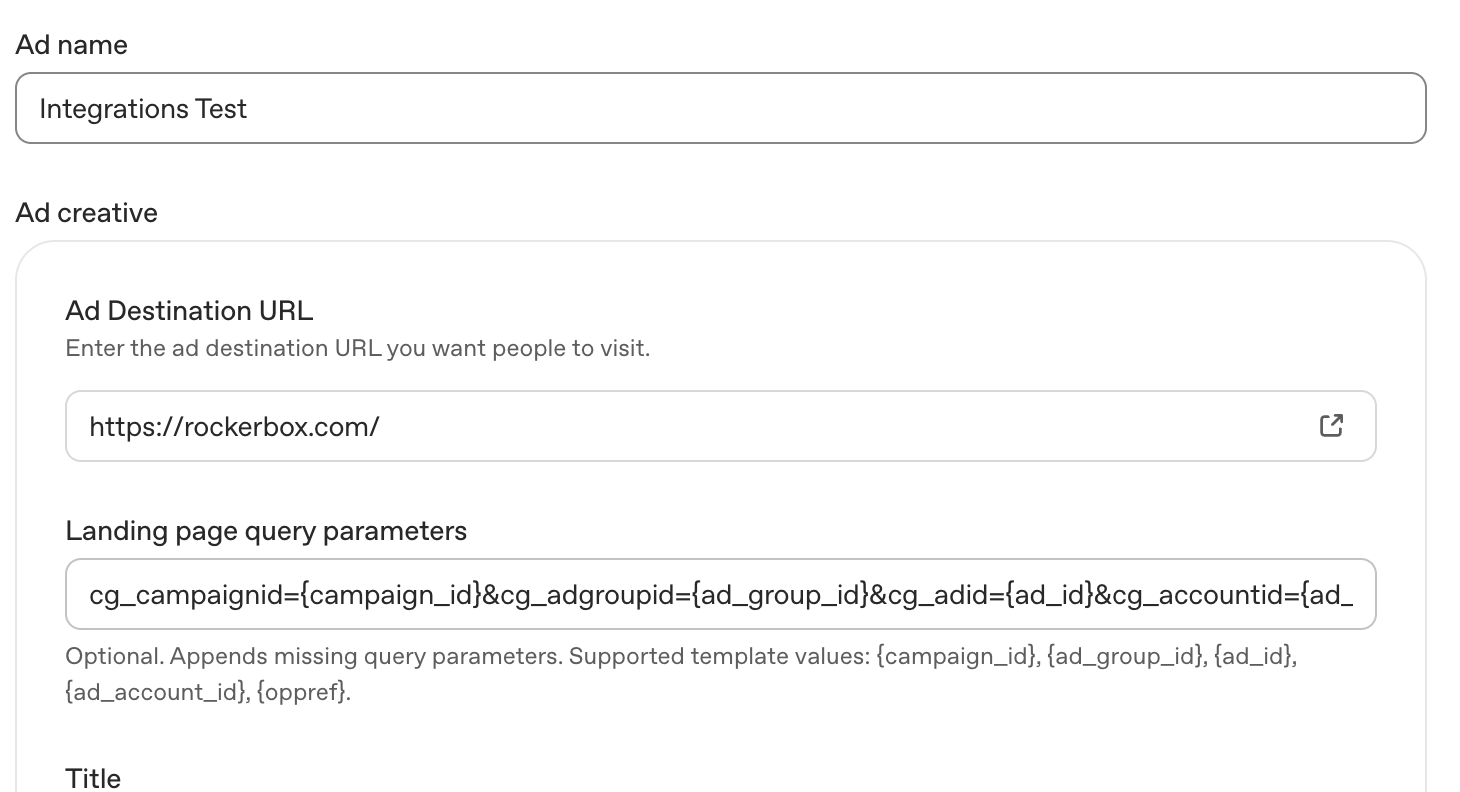 **Example Parameter String:**
```text wrap theme={null}
cg_campaignid={campaign_id}&cg_adgroupid={ad_group_id}&cg_adid={ad_id}&cg_accountid={ad_account_id}
```
| Parameter | Template Value | Description |
| - | - | - |
| `cg_campaignid` | `{campaign_id}` | Campaign ID |
| `cg_adgroupid` | `{ad_group_id}` | Ad Group ID |
| `cg_adid` | `{ad_id}` | Ad ID |
| `cg_accountid` | `{ad_account_id}` | Ad Account ID |
**Note:** All template values are automatically populated by OpenAI when ads are served. No manual replacement is needed.
## Implementation Notes
* Tracking parameters can be configured at the campaign, ad group, or ad level. More specific settings take precedence: Ad URL → Ad → Ad Group → Campaign
* Parameters are appended to the landing page URL as query strings
For implementation assistance, contact [support@rockerbox.com](mailto:support@rockerbox.com).
This documentation is built and hosted on [Mintlify](https://mintlify.com), a developer documentation platform.
**Example Parameter String:**
```text wrap theme={null}
cg_campaignid={campaign_id}&cg_adgroupid={ad_group_id}&cg_adid={ad_id}&cg_accountid={ad_account_id}
```
| Parameter | Template Value | Description |
| - | - | - |
| `cg_campaignid` | `{campaign_id}` | Campaign ID |
| `cg_adgroupid` | `{ad_group_id}` | Ad Group ID |
| `cg_adid` | `{ad_id}` | Ad ID |
| `cg_accountid` | `{ad_account_id}` | Ad Account ID |
**Note:** All template values are automatically populated by OpenAI when ads are served. No manual replacement is needed.
## Implementation Notes
* Tracking parameters can be configured at the campaign, ad group, or ad level. More specific settings take precedence: Ad URL → Ad → Ad Group → Campaign
* Parameters are appended to the landing page URL as query strings
For implementation assistance, contact [support@rockerbox.com](mailto:support@rockerbox.com).
This documentation is built and hosted on [Mintlify](https://mintlify.com), a developer documentation platform.